

Our digital tools are built to solve problems, simplify everyday tasks and work seamlessly with your school website
Hail Newsletter App
Parent Policy Portal
Digital Image Protection

EWS Client Portal
One place to manage website requests, share and store files, coordinate photoshoots and keep your whole team connected with EWS.
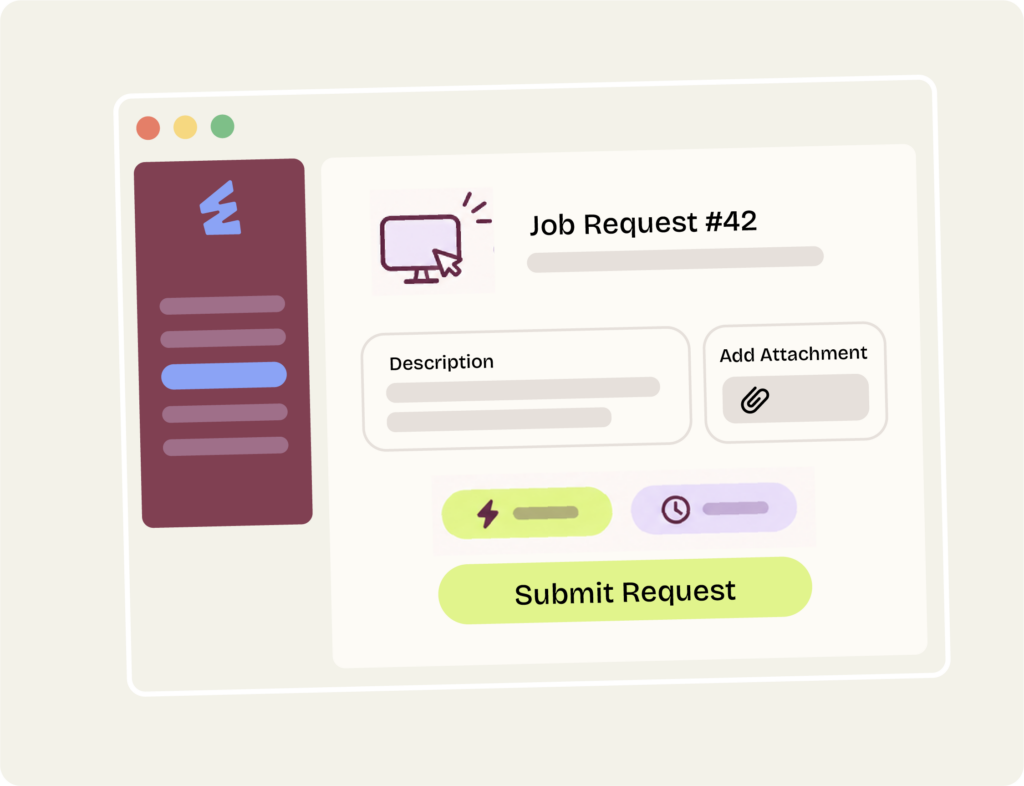
Website support you can follow from request to finish
Lodge website updates directly through the EWS Portal, add any files or screenshots, and choose the priority that suits the job. Every request has its own status, history and conversation with the EWS team, so you can see what’s happening without chasing updates over email.
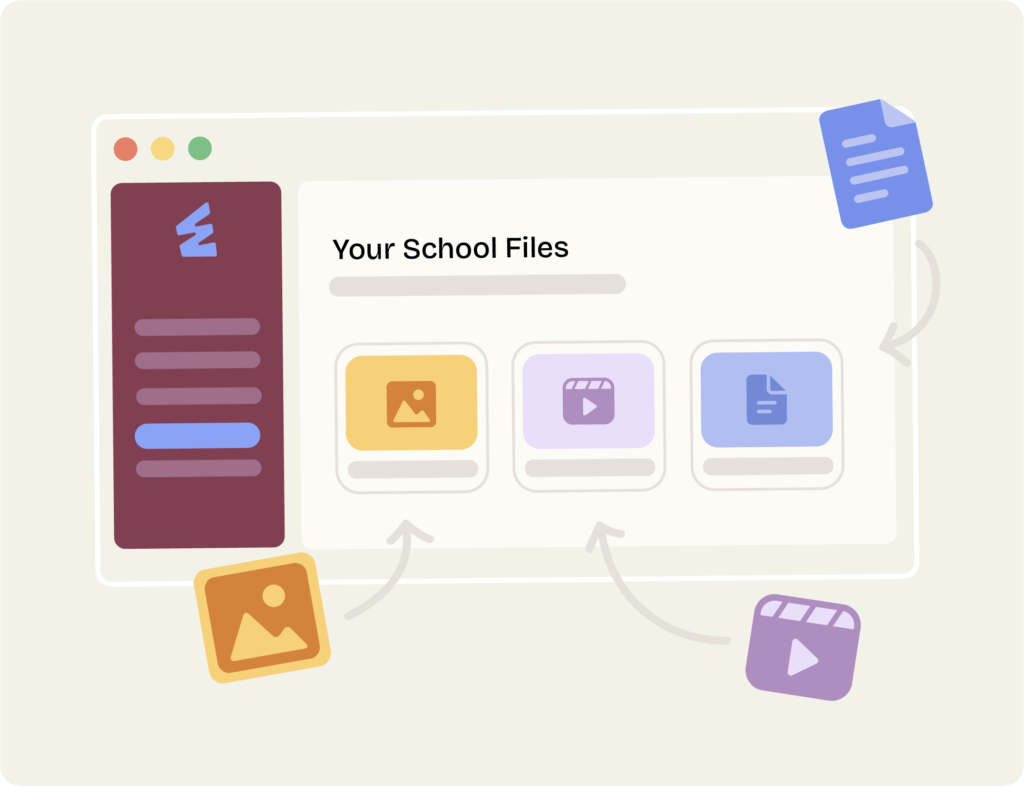
A shared library for your school’s files
Store photos, videos and documents in one shared library, so your team and EWS are always working from the same files. Upload new content, access past files and keep delivered assets together without digging through old emails.
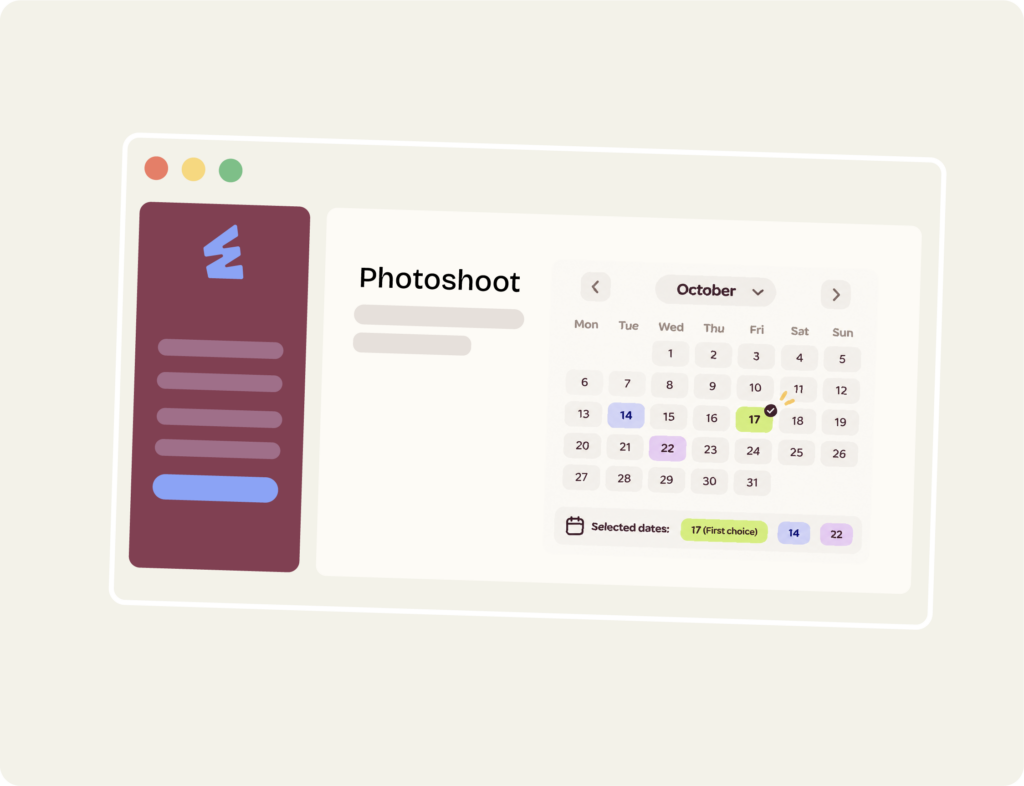
Photoshoot planning, without the back-and-forth
Choose the dates that suit your school, then build the run sheet with your photographer to follow on the day. Add each stop, timing and any important notes, without managing it all through email.
Frequently Asked Questions
-
It’s your school’s direct line to the EWS team. Submit requests, share files and see where each job is up to. Open the EWS Portal
-
Send us everyday updates like new policies, staff photos, enrolment information or changes to a page. You can also report things that aren’t working, like a broken link or a form that won’t submit.
-
Yes. Each verified staff member can register for their own account, so the people who look after your website or coordinate a photoshoot can work directly with us.
-
You can also plan your school photoshoot, review the runsheet and share details for a new website or revamp. It’s also where you can store your school’s photos and videos and keep up with the latest EWS news. Website analytics are on the way!
-
Yes. Your school’s library gives approved staff one place to find the photos, videos and other files EWS has shared with you.
-
Log in, create a request and tell us what you’d like changed. Add the page link and attach any relevant text, images or documents. You can follow the progress and reply to our team in the same request.
Hail Newsletter App
Hail makes school communication simpler, giving your team an easy way to create, manage and share news with your community from one central place.

Share news now. Build newsletters later.
Publish individual articles in real time so families don’t have to wait for the next newsletter to know what’s happening. When it’s time to send the full edition, those articles can be brought together into a polished newsletter in just a few clicks.
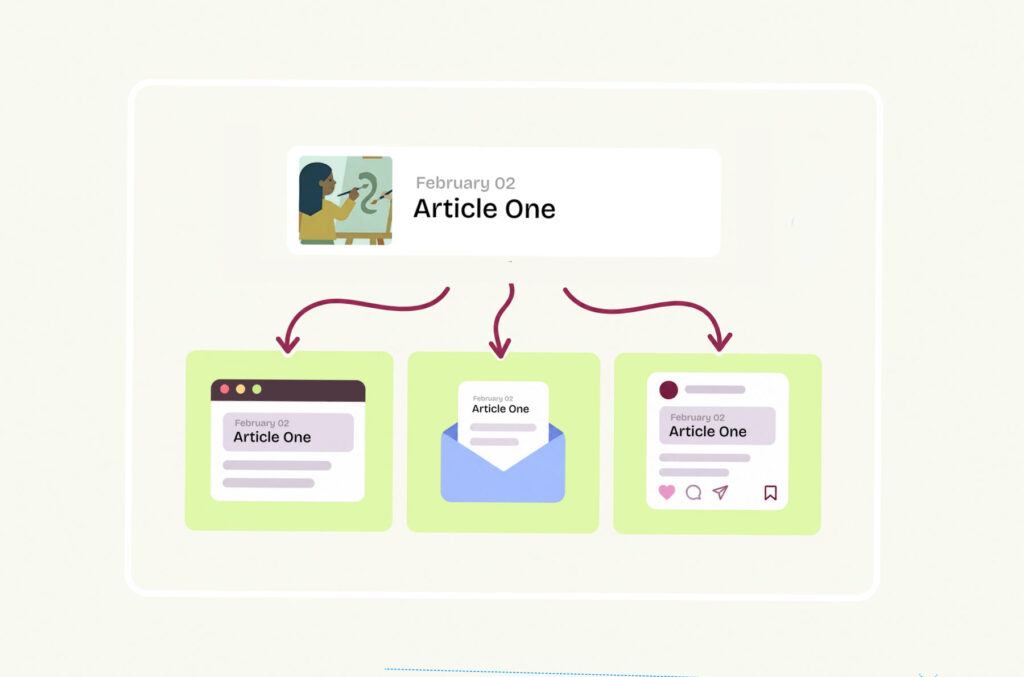
Create once, update everywhere.
Hail gives your school one central place to manage content. Make a change once and it flows through your connected channels, from your website and email newsletters to social media - keeping information consistent without the double handling.
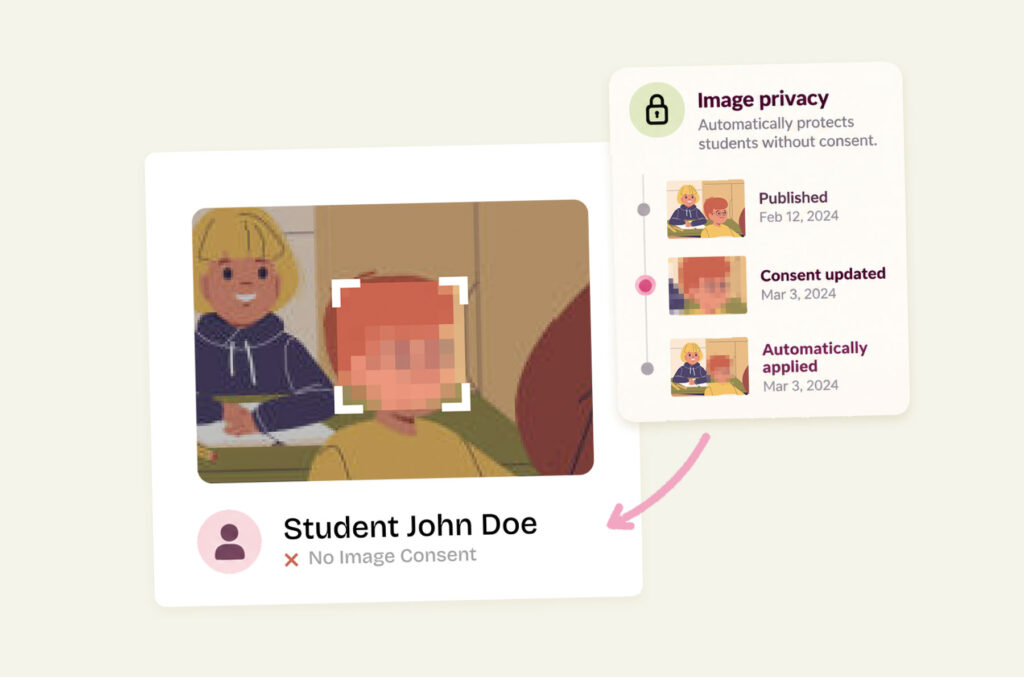
Student image privacy, that works in the background
Hail can automatically blur the faces of students who don’t have image consent, helping schools share content confidently. If a student’s permissions change, Hail can even apply that update to previously published images, without your team having to hunt them down individually.
Frequently Asked Questions
-
Yes. Staff can have their own logins and different permissions. Teachers can write stories and upload photos, while your nominated staff can review and publish them.
-
Yes. Write a story once and choose where it goes. Share it on your school website, SMS systems like Compass or connected social channels like Facebook and LinkedIn, or include it in your next newsletter.
-
Yes. With Hail Mail, you can send your newsletter straight to families, manage your mailing lists and schedule it to go out later.
-
You can also use Hail for school news, notices, event recaps and digital yearbooks. Share a story as soon as it’s ready or save it for your next newsletter.
-
Yes. Open Hail in your web browser on your phone or computer to draft stories, add photos and publish newsletters.
-
Update the student’s privacy settings in Hail and the new preference applies to photos you upload from then on. For older photos, Hail’s Time Machine Scan can find images for your team to review and blur where needed. Photos already posted to social media need to be updated on those platforms.

PhotoSafe
Protect your students and staff images from being copied, saved or misused online in a world of generative AI. Digital Image Protection gives you one secure place to manage media, track access and respond quickly when something doesn’t look right.
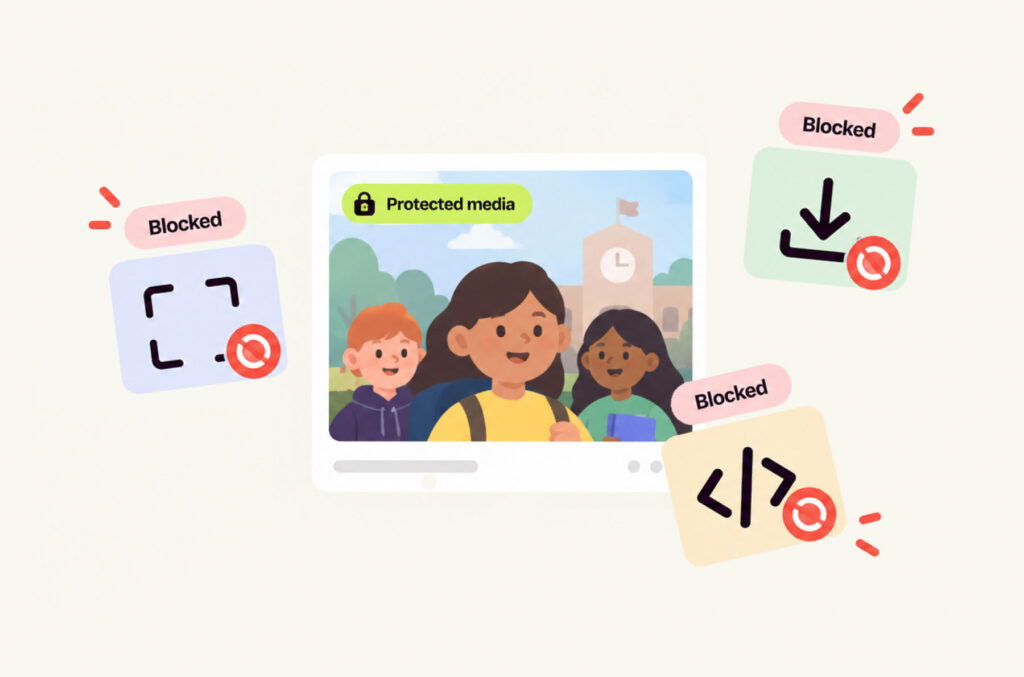
Keep your school imagery from being saved or taken.
Digital Image Protection helps stop people from screenshotting, right-click saving, screenshotting or extracting protected media. If someone attempts to capture protected content, the system can block the image from being captured and record the activity.
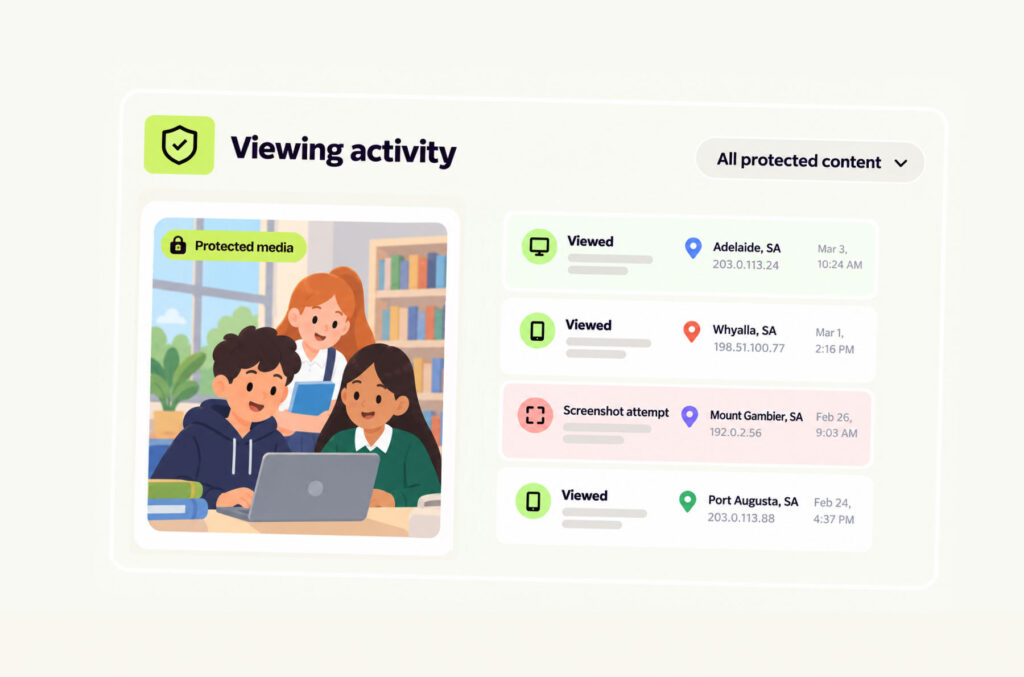
See who’s viewing and accessing your content
The dashboard gives your school visibility over how protected images and files are being accessed, including activity such as attempted screenshots, views and IP address information. This gives your team a clearer picture of how content is being used.
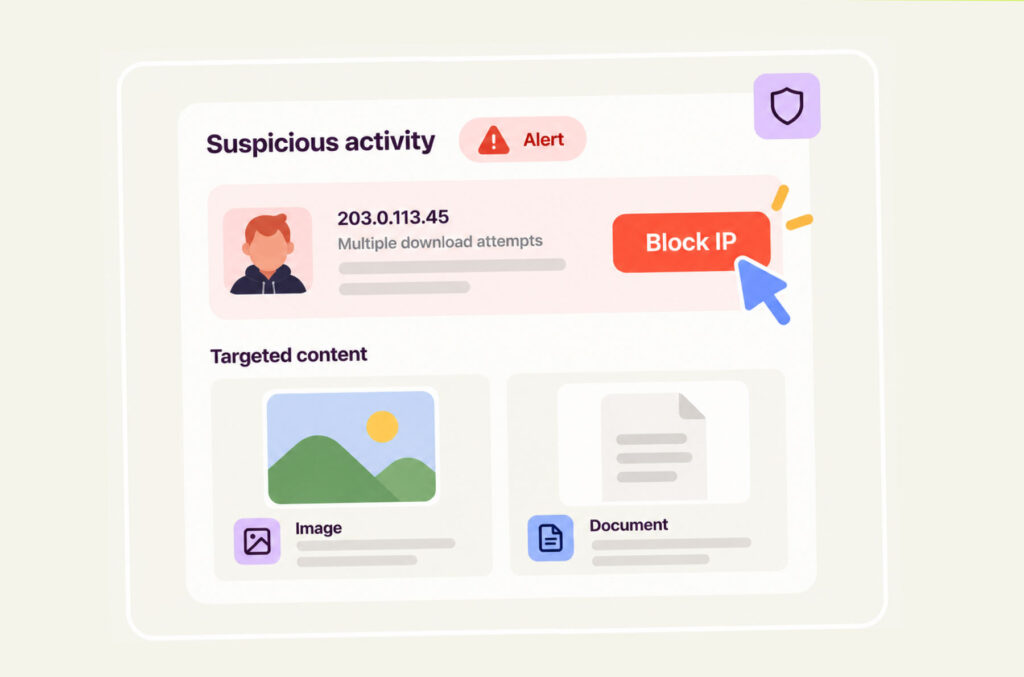
Act quickly when something doesn’t look right
If suspicious activity is detected, your team can review it through the app dashboard and block specific IP addresses instantly. The same protection can also be applied to sensitive documents and classified files, not just images.
Frequently Asked Questions
-
It adds protection to selected images to help block the ai scraping, saving, screenshots and screen recordings on supported devices and browsers.
-
Right-click saving is disabled for protected images, so visitors can’t download them using the usual “Save image as” option.
-
When Digital Image Protection detects a capture attempt, it can respond in real time to help block it. It also logs the IP address and other details of the detected attempt so your team can review what happened. The response depends on the device and browser.
-
Yes. The dashboard shows viewing activity and technical details such as IP address and device information, which can help your team investigate suspicious activity.
-
Your team can manage protected images and review viewing activity from one central dashboard.
-
Your team can review suspicious activity in the dashboard and block access to protected images. You can also restrict access by geographic location and set expiry dates so images are no longer available after a date you choose.

Parent Policy Portal
Managing school policies shouldn’t mean searching through folders, PDFs and outdated files. The Parent Policy Portal gives your team one simple place to manage, update and share important information.
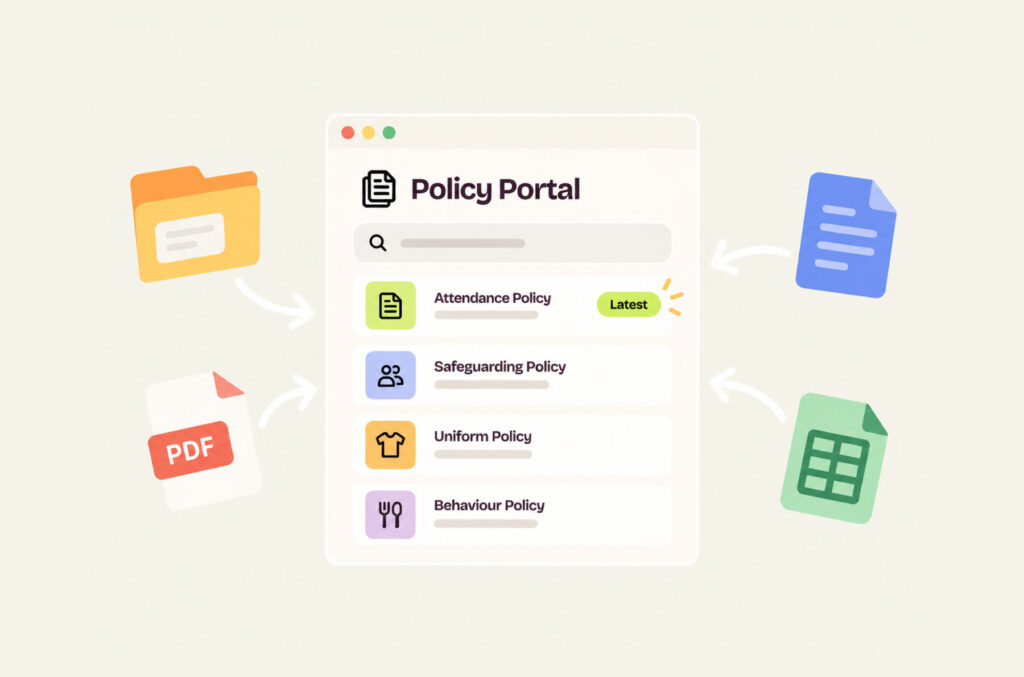
No more hunting for the latest version
The Parent Policy Portal gives schools one central place to manage important policies and information, without digging through folders, old PDFs or multiple working documents. Everything lives in one place, so your team always knows where to go.
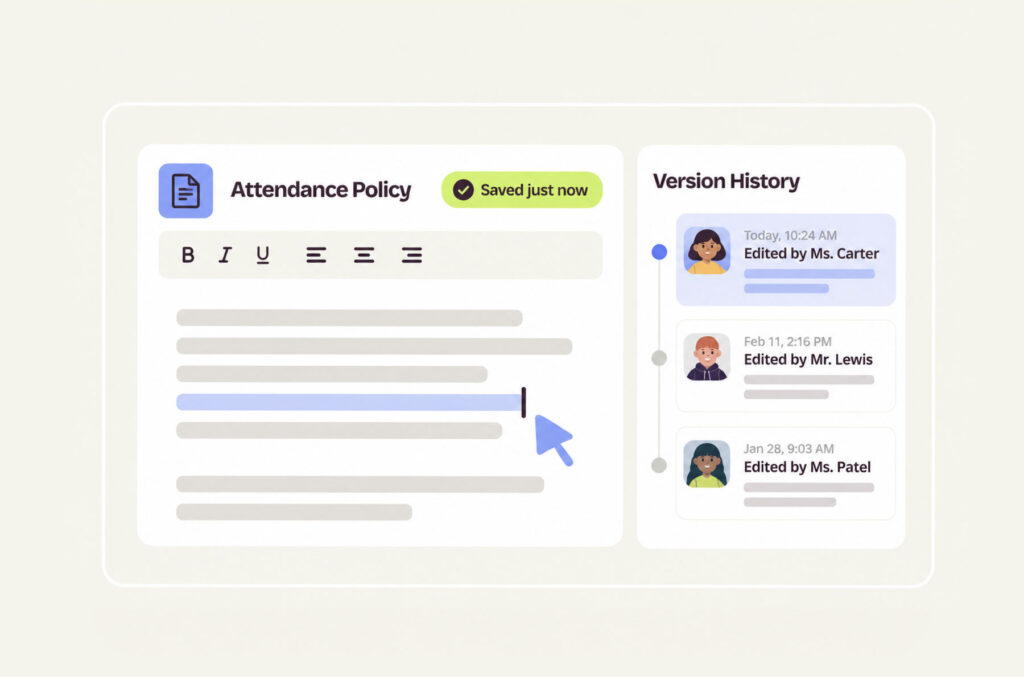
Update policies live, without starting from scratch.
Schools can edit the live version of a policy directly in the portal, with every change automatically saved and time-stamped. Version history also makes it easy to see what changed, when it changed and who made the update.
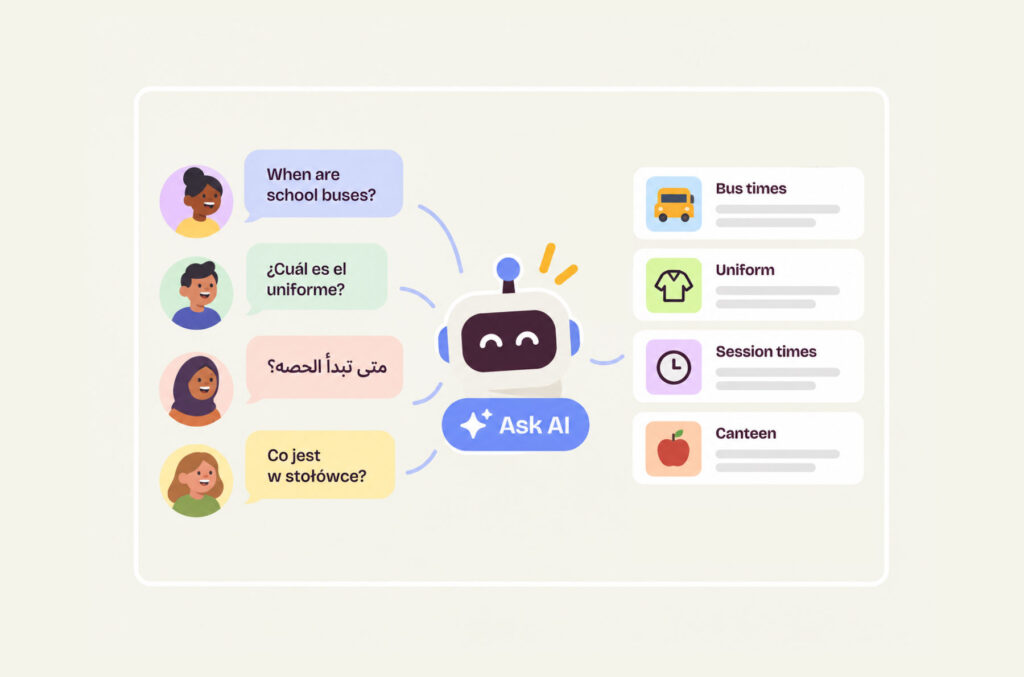
Give families instant answers, in any language.
The built-in AI assistant can search the content within your school’s own Policy Portal and answer questions based only on that information. Families can ask questions in their preferred language and quickly find the information they need without trawling through long documents.
Frequently Asked Questions
-
Yes. Staff can edit policy content in the portal and publish the updated version for families to read online.
-
Yes. The portal keeps previous versions, so your team can go back and see how a policy has changed over time.
-
EWS can help link the portal from your school website. You can put it somewhere families already look for information, like your Parent Information or Policies page.
-
Parents can ask questions in their own words and language, like “What should I do if my child is absent?” The assistant searches your school’s published information and answers in the language they used.
-
You can add parent handbooks, attendance procedures, uniform guidelines and other information families regularly need.
-
Nope, you can publish policies as pages families can read and search online. When something changes, update the page directly and publish the new version.